Confirm Nginx Certificate Reloads for Small Teams, Free for 5 Sites
By Nick Phillips, Founder
Confirm Nginx Certificate Reloads for Small Teams, Free for 5 Sites
In this article, “nginx certificate reload” means monitoring your TLS certificates and getting warned before something breaks. It is not about Nginx admin commands. The right approach is boring on purpose: daily external checks, staggered alerts, and a quick confirmation that your live site is actually serving the new certificate. A friendly tool like Otterwatch can handle that watch duty so you do not have to.
TL;DR:
- External monitoring should check the entire certificate, including SAN, full chain, revocation status, and TLS support, not just the expiry date.
- Automation handles renewal, but monitoring verifies that the new certificate is actually served, catching silent failures like misapplied updates or stale CDN caches.
- Alert schedules should be adapted to certificate lifespans, using 30/15/7/1 day warning periods for longer certificates and tighter schedules for short-lived ones, with alerts routed to appropriate channels.
- Reloading Nginx after certificate updates must be done carefully: verify file placement, syntax, and externally confirm the new certificate is in use, without disrupting active connections.
- Small teams benefit from simple, staggered alerts rather than dashboards, with tools like Otterwatch providing automated external checks and warning notifications for up to five sites.
Table of Contents
- What Does a Good Certificate Monitor Actually Check?
- Why Do You Need Monitoring If Renewal Is Already Automated?
- What Alert Schedule and Channels Actually Work?
- How Do You Fold Monitoring Into an Nginx Workflow?
- Step-by-Step: Reloading Nginx After a Certificate Update
- Best Practices for a Downtime-Free Reload
- Common Certificate Reload Errors and How to Fix Them
- Does Reloading Certificates Disrupt Active Connections?
- How Do You Automate Certificate Reloads in a Deployment Pipeline?
- Why Small Teams Need Calm Alerts, Not Dashboards
- Otterwatch Watches Your Certificates So You Don’t Have To
- Sources
- FAQ
What Does a Good Certificate Monitor Actually Check?
Most people think checking a certificate means looking at one date. That is only step one. A monitor worth trusting reads the whole certificate the way a browser does, and it checks the live endpoint, not just a file sitting on your server.
Here is what actually matters:
- Not After date and days remaining. The obvious one, but the number that starts the countdown.
- SAN and hostname match. Browsers check the Subject Alternative Name list against the hostname you typed, not the old Common Name field. A cert that is valid but missing your
wwwsubdomain in its SAN list will still throw errors. - Full chain and intermediate expiry. Your leaf certificate can look perfectly healthy while an intermediate certificate quietly expires, breaking trust for a chunk of visitors whose browsers do not cache the right intermediate.
- Revocation status and unexpected issuance. OCSP checks confirm a cert has not been revoked, and watching Certificate Transparency logs flags certificates issued for your domain that you never requested.
- TLS negotiation. Confirming the server still supports TLS 1.2 and TLS 1.3 properly catches misconfigurations that show up as handshake failures, not expiry warnings.
A complete monitoring setup probes all of this from outside your network, because that is the only view that matches what a real visitor’s browser sees.
Why Do You Need Monitoring If Renewal Is Already Automated?
Automation is great until it quietly fails, and it fails in ways that look fine from the inside. A renewal script can run successfully, log a clean exit code, and still leave your production site serving an expired certificate.
Here are the failure modes that slip past automation:
- A cron job or systemd timer gets disabled during a server migration and nobody notices for months.
- Domain validation fails silently because a DNS record changed or an HTTP challenge path got blocked.
- The certificate renews on disk, but the process that should pick it up never actually applies the change.
- A CDN or load balancer is still serving a cached, outdated copy of the certificate even though origin renewed fine.
Automation performs the renewal. Monitoring is the separate job of confirming the live endpoint is actually serving what you think it is. Treat them as two different jobs, not one.
Pro Tip: Set a calendar reminder to manually check your renewal automation’s logs once a quarter. Automation that has run correctly for two years can still fail silently the one time a dependency changes.
What Alert Schedule and Channels Actually Work?
Picking a schedule is less about being thorough and more about giving yourself enough runway to fix a problem before it becomes an outage. Two patterns cover almost every situation a small team runs into.
The classic 30/15/7/1 day schedule gives you time to plan, verify that auto-renewal worked, escalate if it didn’t, and page someone urgently at the one-day mark. If your certificates come from a provider issuing shorter-lived certs, a tighter 14/7/1 schedule makes more sense. As certificate lifetimes shrink industrywide, a warning 30 days out starts to feel almost irrelevant.
| Schedule | Best for | First alert channel | Final alert channel |
|---|---|---|---|
| 30/15/7/1 days | Long-lived certs, slower teams | Slack or paging | |
| 14/7/1 days | Short-lived certs, fast-moving teams | Slack | Webhook or paging |
A few rules keep this from becoming noise:
- Run external checks daily at minimum, plus a check right after every deployment.
- Send early alerts to a low-pressure channel like email or a team Slack channel.
- Reserve paging or urgent webhook alerts for the final one or two days, when someone genuinely needs to drop what they’re doing.
- Never route every alert through a single channel. One inbox filter or a missed Slack notification shouldn’t be the only thing standing between you and an outage.
How Do You Fold Monitoring Into an Nginx Workflow?
You do not need to be a sysadmin to run a solid monitoring workflow. You need a clear sequence: detect, verify, diagnose, resolve, confirm.
- Detection. Your monitor flags a certificate nearing expiry, a SAN mismatch, or an unexpected issuance event.
- Verify the live endpoint. Check what the actual public-facing site is serving right now, not what’s sitting in a config file or a certificate directory.
- Investigate the likely cause. Was the renewal never applied? Is a CDN serving a stale copy? Did domain validation fail on the latest attempt?
- Hand off to whoever manages the server. This is where a non-admin’s job ends and a sysadmin’s begins, if you don’t manage the box yourself.
- Confirm the fix. Re-run the external check and make sure the new certificate is actually live before you close the loop.
If you are not the one managing the server, gather these details before you escalate, so whoever picks it up doesn’t have to ask twice:
- The exact domain and subdomain affected
- The certificate’s SHA-256 fingerprint
- A screenshot or command output showing the specific error
- The last known good timestamp
- Which alert window triggered the escalation (day 7? day 1?)
For teams running CI/CD pipelines, add a post-deploy step that hits your live domain and confirms the certificate fingerprint matches what you expect. It’s a five-minute addition that catches deployment mistakes before a customer does. And if a fix requires touching server config directly, that’s the point to bring in an engineer or your hosting provider’s support team rather than guessing.
Pro Tip: Keep a one-page runbook with your DNS provider, hosting support contact, and certificate authority account details. When something breaks at 11 PM, you don’t want to be hunting for login credentials.
Step-by-Step: Reloading Nginx After a Certificate Update
Once a new certificate lands on your server, whoever manages Nginx needs to apply it without breaking active traffic. The process is short, but the order matters.
First, confirm the new certificate and private key files are in place at the paths your Nginx configuration expects. A mismatched file path is the single most common reason a “successful” renewal doesn’t actually show up on the live site.
Second, validate the Nginx configuration syntax before touching anything live. This catches typos or malformed certificate chains before they take your site down.
Third, apply the change with a reload rather than a full restart, since a reload picks up new certificate files while keeping existing connections intact.
Fourth, verify externally. Don’t trust the server’s own opinion of itself. Check the live domain from an outside connection and confirm the fingerprint, expiry date, and SAN list all match the new certificate.
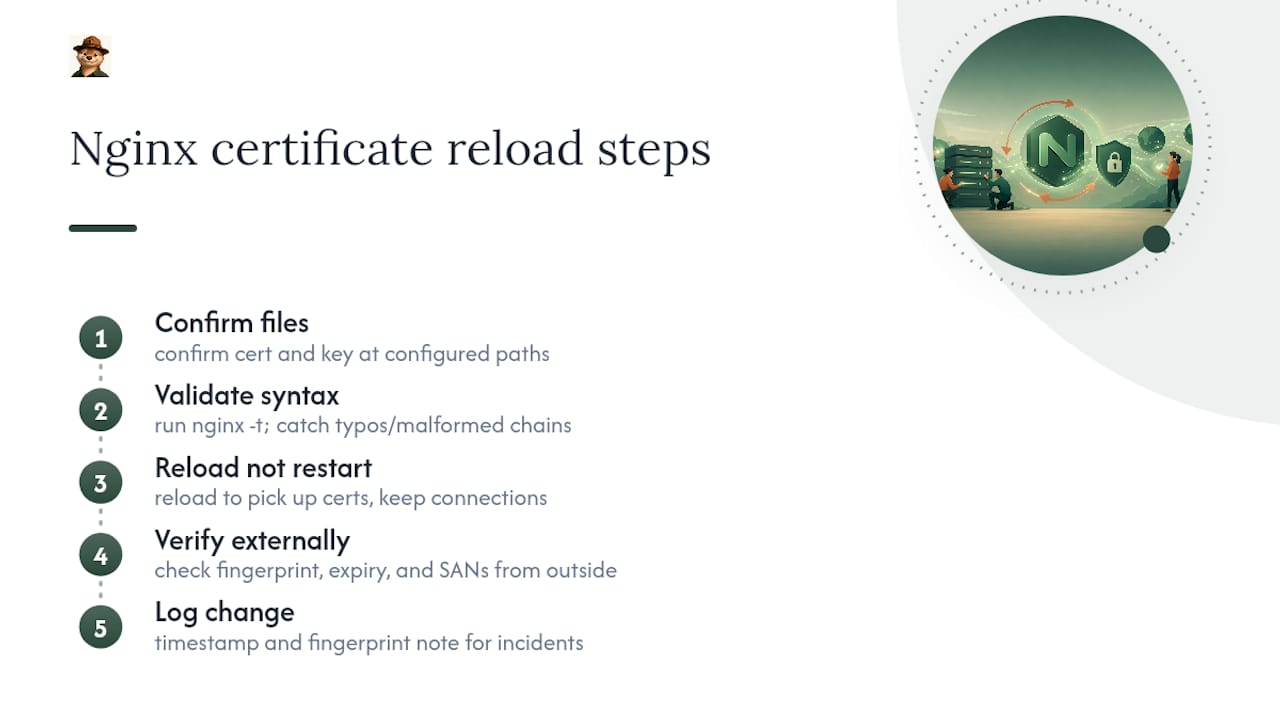
Fifth, log the change. A simple timestamp and fingerprint note saves real time during the next incident, when you’re trying to figure out when something last worked correctly.
That verification step at the end is the one people skip, and it’s the one that actually matters. A hosted monitoring service can automate that external check so it happens every time, not just when someone remembers.
Best Practices for a Downtime-Free Reload
The goal of any certificate reload is zero disruption for anyone currently connected to your site. Getting there is about sequencing, not clever tricks.
Always validate configuration syntax before applying changes. A broken config file caught before a reload is a two-minute fix; the same mistake caught after is a site-wide outage.
Keep old certificate files around briefly instead of deleting them the moment a new one arrives. If something goes wrong during the reload, having the previous working files on hand makes rollback fast instead of frantic.
Schedule reloads during low-traffic windows when you have the choice, even though a clean reload rarely causes visible disruption. It’s a small courtesy to your monitoring alerts and your own nerves.
Test on a staging environment first if your setup allows it, especially when you’re also touching chain files or intermediate certificates alongside the leaf certificate. Chain issues are exactly the kind of problem that looks fine in isolation and falls apart in production.
Document the standard sequence somewhere your whole team can find it. The person who normally handles this will eventually be on vacation the day it needs to happen again.
Common Certificate Reload Errors and How to Fix Them
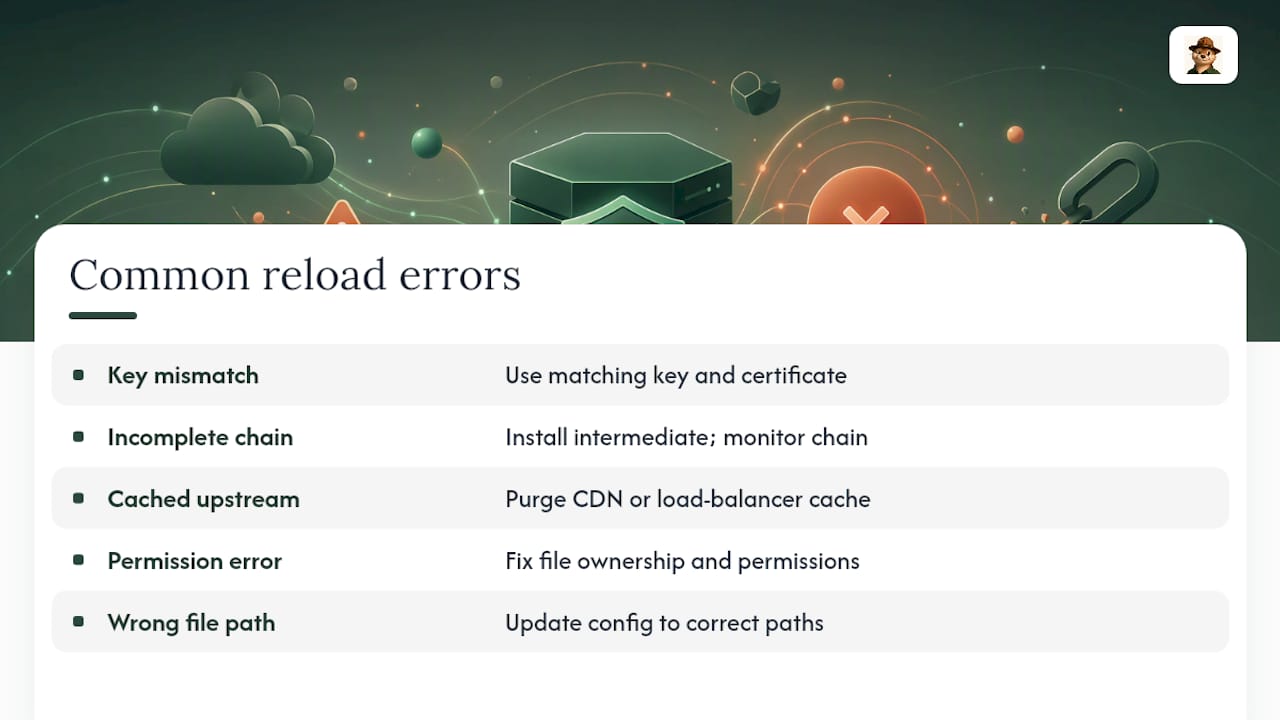
Most certificate reload problems trace back to one of a handful of usual suspects. Recognizing the pattern saves you from debugging the wrong layer.
A certificate and key mismatch happens when the private key on the server doesn’t correspond to the certificate you just installed, usually from copying files from the wrong renewal batch. The fix is confirming both files came from the same issuance.
An incomplete chain shows up when the intermediate certificate is missing or expired, which can make a certificate look valid in some browsers and broken in others depending on how each browser caches trust. This is exactly why chain and intermediate monitoring deserves its own line item, not just a leaf-certificate expiry check.
A stale cached copy at a CDN or load balancer means your origin server is fine, but visitors are still hitting an old certificate cached upstream. This one fools a lot of people because the origin check passes.
Permission errors on certificate or key files block the web server process from reading them at all, usually after a file gets copied in with the wrong ownership.
Wrong file paths in the configuration are the quiet version of all of this. Everything renews correctly, everything reloads correctly, and the server keeps serving the previous certificate because the config still points at the old file location.
Does Reloading Certificates Disrupt Active Connections?
A properly executed reload does not drop existing connections. New TLS handshakes pick up the new certificate immediately, while connections already established continue on the certificate that was in place when they started.
This is different from a full restart, which does interrupt everything mid-flight. That distinction is worth knowing if you’ve ever hesitated to update a certificate during business hours out of fear of knocking users offline. A reload is designed specifically to avoid that.
The one place this gets murkier is with long-lived connections, such as websockets or streaming sessions that stay open for hours. Those connections keep using whatever certificate was active when they were established, which is generally fine since the old certificate is still valid during the transition window. Problems only show up if you wait until the old certificate has actually expired before reloading, at which point new connection attempts using the expired cert would fail while old ones limp along until they naturally close.
How Do You Automate Certificate Reloads in a Deployment Pipeline?
Manual reloads work fine until you have more than one server, at which point they become the kind of task someone forgets during a busy week. Building the reload step into your deployment pipeline removes that risk entirely.
Add a post-renewal hook that automatically triggers the reload the moment a new certificate is issued, rather than relying on someone remembering to do it. Most renewal tools support this directly, including setups built around Certbot and Let’s Encrypt automation.
Follow that hook with an automated verification step, not just a “did the command exit successfully” check. A script that hits your live domain and confirms the certificate fingerprint matches what was just issued catches the deployment failures that silent automation misses.
For multi-server setups, stagger the reload across your fleet rather than firing it everywhere simultaneously, so a bad certificate doesn’t take down every node in your pool at once.
Finally, feed the result back into whatever monitoring you’re already running. If your pipeline’s automated check and your external monitor both confirm the same fingerprint, you can trust the deployment actually worked instead of just hoping it did.
Why Small Teams Need Calm Alerts, Not Dashboards
Small teams don’t fail at certificate management because they don’t care. They fail because nobody has time to check a dashboard every morning on top of everything else running the business. What actually works is a plain alert that tells you what’s wrong and when it needs attention, routed to wherever your team already looks.
The workflow described here respects that constraint on purpose: daily checks in the background, staggered warnings instead of one panicked email, and a clear escalation point instead of a wall of red numbers.
— Nick Phillips
Otterwatch Watches Your Certificates So You Don’t Have To
Otterwatch offers daily external checks, expiry and SAN and chain monitoring, and staggered alerts sent as plain heads ups instead of dashboards with graphs. Its free tier includes monitoring for up to five sites, intended to support solo founders and small teams.
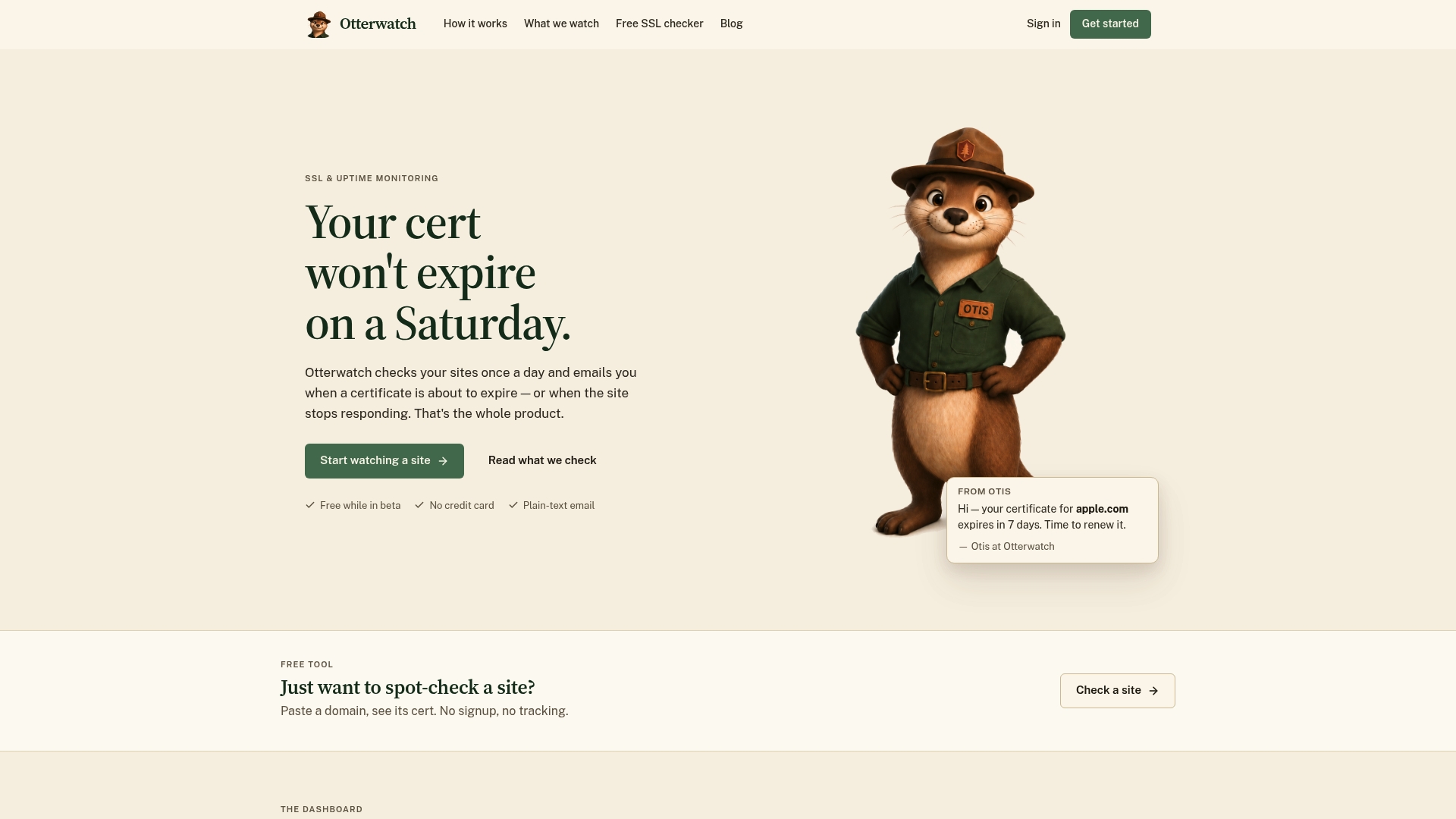
Alerts currently route through email, with Slack and webhook integrations planned for teams that want their warnings to land somewhere they already work. If you want to see what a real certificate looks like right now, run a domain through the free SSL certificate checker. If you’re ready for deeper monitoring, change detection, and more domains than the free tier covers, the Pro plan runs $15 per month. Either way, checking your first domain takes about thirty seconds.
Sources
For deeper reading on alert timing and endpoint checks, see Pulsetic’s staggered alert guide and SSLNudge’s monitoring overview. For renewal mechanics, read Otterwatch’s guide on certificate renewal.
FAQ
What Does “Nginx Certificate Reload” Actually Mean?
In practical terms for site owners, it refers to confirming that a TLS certificate change has actually taken effect on your live server, not to a specific admin command. Monitoring tools verify this from outside your network so you see what visitors see.
How Often Should I Check My Certificate’s Status?
Daily external checks are enough for expiry monitoring, with an extra check immediately after any deployment. This cadence catches configuration regressions without generating noise from constant polling.
Does Automatic Renewal Mean I Don’t Need Monitoring?
No. Automation handles the renewal step, but it can fail silently through disabled timers, failed domain validation, or stale copies cached at a CDN. Monitoring is the separate step that confirms the live site is actually serving the new certificate.
What Alert Schedule Should a Small Team Use?
A 30/15/7/1 day schedule works well for longer-lived certificates, while a tighter 14/7/1 schedule fits shorter-lived certs better. Route early alerts to email or Slack and reserve the final warning for a paging channel.
Does Otterwatch Monitor Certificate Chains, Not Just Expiry Dates?
Yes. Otterwatch checks expiry, SAN and hostname matches, and chain details, and the free plan covers up to five sites with no credit card required. Full pricing details for the Pro tier are on the Otterwatch pricing page.
Recommended
- SSL Certificate Installation Explained for Small Sites
- SSL Certificate Installation Steps: Server Guide 2026
- SSL Certificate Best Practices for Small Business Sites
- Small Teams: 3 Quick Checks for Certificate Issuance Alerts
Catch the next cert expiry before your users do.
Otterwatch checks your SSL certificates daily and emails you 30 days before they expire. Five sites free.
Start watching →