Copy Ready Certificate Expiry Calendar for Small Teams
By Nick Phillips, Founder
Copy Ready Certificate Expiry Calendar for Small Teams

The most reliable way to track certificate expirations is a staged calendar reminder schedule tied to the actual served certificate’s “Not After” date, backed by automated monitoring that verifies renewals happen on time. Stage your reminders around 90, 60, 30, 7, and 3 days out, or renew at roughly two thirds of the certificate’s lifetime if it’s shorter. Start now: check the live certificate’s expiry date and drop the first event on your calendar.
TL;DR:
- Automated verification of the served certificate’s expiration date is essential to ensure renewals are successfully completed, especially for short-lived certificates.
- Reminders should be set at 90, 60, 30, 7, and 3 days before expiry, with the schedule compressed for certificates with shorter lifetimes to avoid gaps.
- Every calendar event must include detailed information like hostname, exact expiry timestamp with timezone, check commands, and responsible owner to facilitate prompt action.
- Assigning specific roles such as owner, approver, installer, and verifier ensures clear responsibility at each stage, supported by a tailored escalation policy.
- Industry trends toward shorter certificate validity, especially below 60 days, necessitate adaptive renewal schedules based on current certificate lifetimes rather than fixed intervals.
Table of Contents
- 1. Set up a staged calendar reminder schedule
- 2. Check a certificate’s expiration date quickly
- 3. Build calendar events your team will actually act on
- 4. Assign roles and build a simple escalation policy
- 5. Why certificate lifetimes are shrinking and what that means for your schedule
- 6. Copy-paste checklist and calendar event template
- Why we build calendars as a backstop, not a primary system
- Otterwatch: a calmer way to handle certificate expiry
- Sources
- FAQ
1. Set up a staged calendar reminder schedule
A single “expires soon” reminder is how certificates lapse. You need stages, each with its own job, because renewing a certificate involves procurement, validation, ordering, installation, and verification, and each step can stall.
A classic staged schedule looks like this:
- 90 days out: confirm who owns the renewal and check whether auto-renewal is configured.
- 60 days out: for manually managed certificates, start the renewal request or reissue process.
- 30 days out: validate that the new certificate has been ordered or issued.
- 7 days out: install and test the new certificate on a staging environment if possible.
- 3 days out: final check, escalate if nothing has changed.
If the certificate auto-renews (Let’s Encrypt via ACME, for example), you don’t need the full five-stage chain. Keep the 30 and 7 day reminders as verification checkpoints instead of action items: their job shifts from “renew this” to “confirm renewal happened.” For shorter-lived certificates, compress the schedule proportionally rather than dropping stages entirely.
2. Check a certificate’s expiration date quickly
Before you add anything to a calendar, get the real expiry date from the certificate that’s actually being served, not the one you think is installed.
- In Chrome, click the padlock icon in the address bar, open “Connection is secure,” then “Certificate is valid” to see the certificate viewer, where “Valid until” shows the exact Not After date.
- For a PEM file, run
openssl x509 -in cert.pem -noout -enddateto print the expiry timestamp directly. - For a live host, run
openssl s_client -connect example.com:443 -servername example.com | openssl x509 -noout -enddate, which pulls the certificate the server is actually presenting over TLS. - Record the timezone along with the timestamp. OpenSSL prints GMT by default, and a date that looks like tomorrow in your local time might already be today in GMT.
Recheck after every renewal. Automation can fail silently and leave an old certificate served even after a new one was issued, so a quick host check after renewal confirms the switch actually took. This browser and CLI walkthrough covers a few more inspection methods if you want backup options.
3. Build calendar events your team will actually act on
A calendar event that just says “cert expires” is close to useless. Give it enough detail that whoever opens it can act without hunting for context.
Include these fields in every event:
- Title: hostname plus expiry date, like “Renew cert: api.example.com, expires March 12, 2026.”
- Not After timestamp: copied exactly from your OpenSSL check, timezone included.
- Check commands: the exact
opensslcommand to re-verify the live cert. - Runbook link: a pointer to your renewal steps, wherever they live.
- Owner: one named person, not a team alias.
Duplicate the event across Google Calendar, Outlook, and iCal if your team is split across tools, or use a shared calendar with a read-only feed for people who just need visibility. For anything client-facing, add an email escalation so a missed reminder doesn’t just sit unread in one inbox. This notification setup guide walks through who should get pinged at each stage.
Pro Tip: Put a one-click verification link (a quick checker URL) and a rollback contact directly in the event description, so anyone triaging the reminder doesn’t have to ask around.
4. Assign roles and build a simple escalation policy
A staged reminder schedule only works if someone is actually responsible for acting on it. Map roles to your calendar stages before the first reminder fires.
- Owner: gets the 90 and 60 day reminders, responsible for confirming renewal status.
- Approver: signs off on the renewal at the 30 day mark, particularly for validated certificates that need business confirmation.
- Installer: handles the 7 day reminder, installs and restarts services on the new certificate.
- Verifier: runs the host check at 3 days out and again the day after expiry to confirm the switch worked.
A simple escalation script for your runbook: at 30 days, notify the owner only. At 7 days, notify the owner and installer. At 3 days, notify the owner, installer, and a team lead, and if nothing has changed by the day before expiry, page whoever’s on call. This mirrors the pattern used in DigiCert CertCentral’s default renewal notifications, which fire at 90, 60, 30, 7, and 3 days before expiry, plus a follow-up 7 days after, giving you a tested stage pattern to copy rather than invent from scratch.
5. Why certificate lifetimes are shrinking and what that means for your schedule

Fixed 60-day reminders are becoming risky. Let’s Encrypt’s guidance describes a shift from 90-day default certificates toward shorter opt-in profiles, and it explicitly warns that a hardcoded 60-day renewal interval won’t leave enough room once shorter lifetimes become standard. The CAB Forum’s Ballot SC081v3 lays out an industry-wide schedule reducing maximum validity and data reuse periods, trending toward a 47-day maximum over time.
The practical shift: renew at roughly two thirds of whatever the current lifetime is, rather than picking a fixed day count and hoping it still fits next year.
- If your certificates auto-renew via ACME, your calendar reminders should verify automation, not trigger manual work.
- Check renewal job logs at each stage to confirm the automated process actually ran.
- If your CA supports ARI (ACME Renewal Information), use it to get CA-recommended renewal windows automatically.
- Run a test renewal outside production before trusting a new automation pipeline.
Manual calendar-driven renewals still make sense for CA-managed certificates with complex validation, like extended validation certs or certificates tied to procurement cycles that can’t be automated.
6. Copy-paste checklist and calendar event template
Here’s a template you can paste directly into a calendar invite description:
- Title: Renew cert: [hostname], expires [date]
- Not After: [exact timestamp with timezone]
- Hostname: [hostname]
- Owner: [name]
- Check command:
openssl s_client -connect [host]:443 -servername [host] | openssl x509 -noout -enddate - Runbook link: [internal link]
- Rollback contact: [name/contact]
A short runbook to attach: confirm the currently served certificate’s expiry, request or trigger renewal, install the new certificate, verify the served certificate changed and matches the new Not After date, then keep monitoring for a few days to confirm nothing regressed.
Sample 30-day email wording: “Certificate for [hostname] expires in 30 days. Confirm renewal status by [date].” At 7 days: “Certificate for [hostname] expires in 7 days. Installation should be complete.” At 3 days: “Certificate for [hostname] expires in 3 days. This needs to be resolved today.”

Why we build calendars as a backstop, not a primary system
Calendar reminders are good at one thing: catching what automation misses. They’re bad at the thing people actually want from them, which is remembering to look at the calendar in the first place. I’ve watched teams drown their own reminders in noise, five separate expiry warnings a day until nobody reads any of them, which is worse than having none.
The staged schedules in this article work best paired with automated monitoring that checks the served certificate directly and notifies only when an issue arises.
— Nick Phillips
Otterwatch: a calmer way to handle certificate expiry
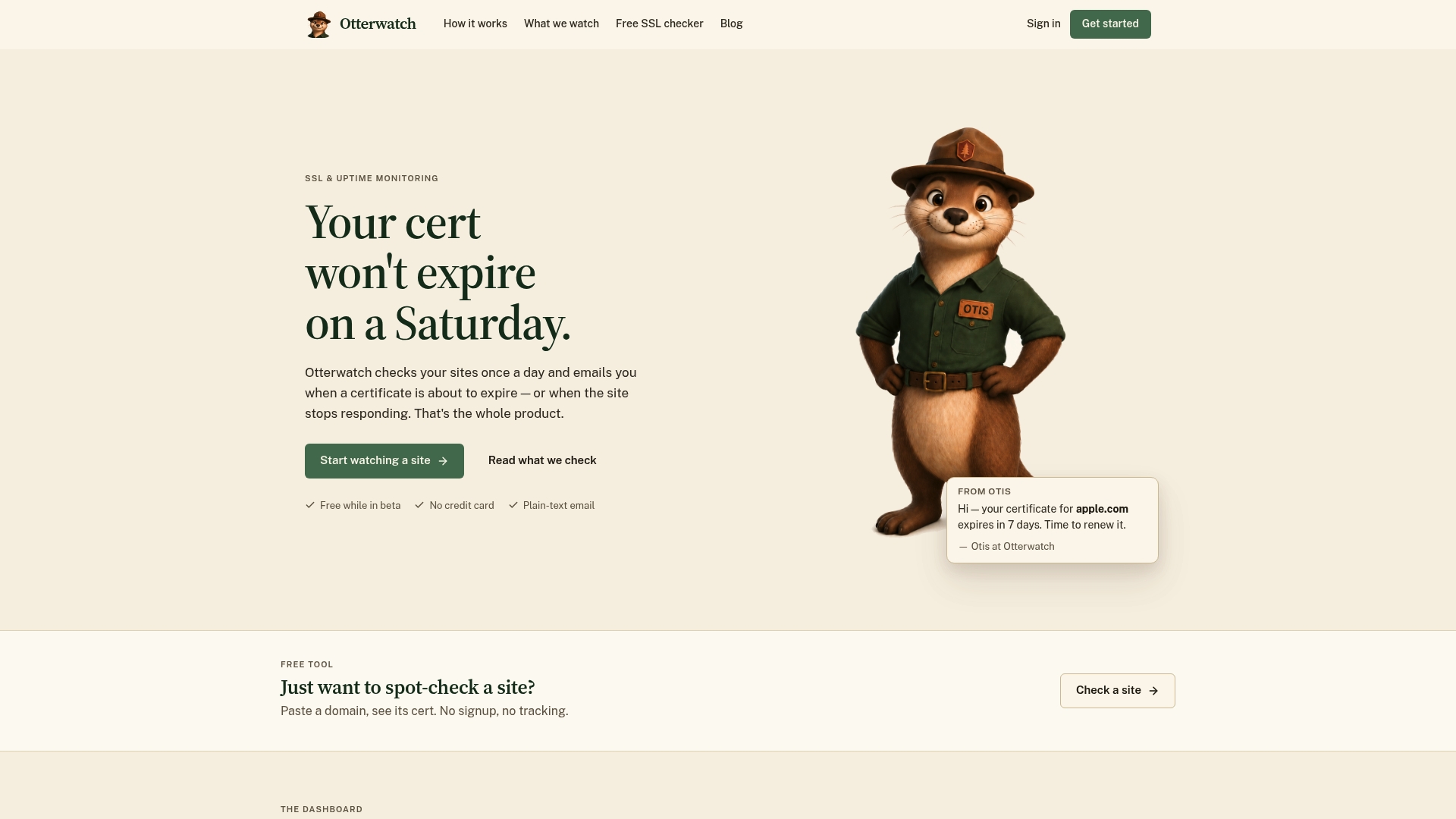
Calendars work, but they depend on someone remembering to check them and someone updating the event when a renewal date shifts. Otterwatch handles the checking part automatically: it watches the certificate actually being served on your domains and sends a plain-language email well before expiry, no dashboard to babysit, no wall of red alerts.
- Automated expiry checks replace the need to manually verify Not After dates on a schedule.
- Preconfigured reminders mean you skip building the 90/60/30/7/3 day staging yourself.
- The free plan covers monitoring of a limited number of domains and does not require a credit card, which suits solo maintainers and small teams.
If you’re managing a handful of sites and want reminders without maintaining a calendar system, start with the free SSL certificate checker to see your current certificate status, then look at Otterwatch’s pricing for available plans, including a free tier and a paid option for deeper monitoring and more integrations. Keep calendar-only tracking if you’re managing one or two certificates by hand and prefer full manual control.
Sources
For lifetime and automation guidance, see Let’s Encrypt’s announcement on shortening default certificate lifetimes and the CAB Forum’s Ballot SC081v3 on the industry validity schedule. For notification patterns, DigiCert’s CertCentral renewal notifications show a tested staging model. For checking expiry directly, see The SSL Store’s Chrome walkthrough. Teams auditing their renewal automation may also find Ranksector’s automation audit resources useful for a broader process review.
- How to Check a Certificate’s Expiration Date (Chrome) - The SSL Store
- Certificate renewal notifications - DigiCert CertCentral
- Decreasing Certificate Lifetimes to 45 Days - Let’s Encrypt
- Ballot SC081v3: Introduce schedule of reducing validity and data reuse periods - CA/Browser Forum
FAQ
How do I track certificates that are about to expire?
Check the live certificate’s Not After date using your browser’s padlock icon or an OpenSSL command, then add staged calendar reminders at intervals like 90, 60, 30, 7, and 3 days before expiry. Pair those reminders with automated monitoring that verifies the served certificate actually changed after renewal.
How long will an SSL certificate be valid in 2026?
Certificate lifetimes are shortening industry-wide: Let’s Encrypt’s December 2025 announcement describes a move from 90-day defaults toward shorter opt-in profiles, and the CAB Forum’s schedule trends toward a 47-day maximum over time. Check with your specific certificate authority for the exact lifetime issued on any given certificate.
How do I find a certificate’s exact expiry date?
In Chrome, click the address bar padlock, then “Connection is secure” and “Certificate is valid” to see the Not After date. From a terminal, run openssl x509 -enddate -noout -in cert.pem for a file, or use openssl s_client combined with openssl x509 to check a live host’s served certificate directly.
Why do some certificate schedules mention 47 days?
The CAB Forum’s Ballot SC081v3 lays out a phased schedule reducing maximum certificate validity and data reuse periods, with an eventual maximum around 47 days as later phases take effect. That’s part of a broader industry push toward shorter lifetimes that also includes Let’s Encrypt’s own shift away from 90-day defaults.
Recommended
- One Hour Setup to Prevent Root Certificate Expiry for Small Teams
- 200 Days of Renewals: Track Certificate Issuers for Small Teams
- Small Teams: Set Up Certificate First Email Alerts (30/14/7/3/1 Days)
- Certificate Expiration Check Script: A Practical Guide
Catch the next cert expiry before your users do.
Otterwatch checks your SSL certificates daily and emails you 30 days before they expire. Five sites free.
Start watching →