Small Teams: Set Up Certificate First Email Alerts (30/14/7/3/1 Days)
By Nick Phillips, Founder
Small Teams: Set Up Certificate First Email Alerts (30/14/7/3/1 Days)
Start external monitoring today for every hostname that terminates TLS, then wire staggered email alerts (30, 14, 7, 3, and 1 day out) to the specific person who can renew or fix each certificate. After every renewal, confirm from a cold outside connection that the live endpoint is actually serving the new cert, not just that a script says it ran.
TL;DR:
- Certificates in load balancers, internal APIs, and third-party hosts often go unnoticed without proper inventory management.
- A 30/14/7/3/1-day escalation schedule is recommended, with immediate alerts for already expired or chain mismatch issues.
- Alerts must include specific details like hostname, expiration date, owner, and remediation hints to prompt prompt action.
- External, fresh connection tests are crucial after renewal to confirm a new certificate is correctly deployed and live.
- Keep alert frequencies low, route critical alerts directly, and protect alert system credentials to prevent fatigue and security breaches.
Table of Contents
- How Do I Inventory Certificates and Assign Owners?
- How Often Should You Check for Expiry and Uptime Issues?
- How Do You Configure Email Alerts So They Get Acted On?
- How Do You Test Email Alerts From an External Connection?
- What Should the Alert Recipient Do First?
- Setting Up Email Alerts on Common Tools
- How Do You Avoid Alert Fatigue From Too Many Emails?
- What Security Steps Matter When Setting Up Email Alerts?
- Why Aren’t My Email Alerts Arriving?
- A Practical Take on Keeping Alerts Calm
- Try Certificate-First Email Alerts With Otterwatch
- Sources
- FAQ
How Do I Inventory Certificates and Assign Owners?
You cannot alert on what you have not counted. Before touching any monitoring tool, build a plain list of every place TLS terminates, because half the certificate outages we hear about come from a hostname nobody remembered existed.
For each certificate, capture key metadata such as hostname(s), issuer and chain status, expiration date, assigned individual owner, renewal method, deployment environment, and where the certificate is loaded in production.
The blind spots are rarely the main website. They’re the load balancer in front of it, the internal API gateway, the mail server, the VPN concentrator, internal mTLS between services, and anything hosted on a third-party platform where you assume “they handle it.” A certificate expiration monitoring playbook recommends tagging owners and service criticality against every entry precisely because that tagging is what later decides alert cadence and escalation speed.
Once the inventory exists, sort it into tiers. Tier 0 is anything customer-facing and revenue-generating. Tier 1 is internal but business-critical. Tier 2 is low-impact or rarely-used. A marketing landing page and a payment API should never share the same alert schedule.
How Often Should You Check for Expiry and Uptime Issues?
Different signals need different clocks. Expiry checks work fine once a day. Uptime checks need to run every 5 minutes for most sites, dropping to 1 minute for anything Tier 0. Certificate transparency (CT) log monitoring, which flags a new certificate the moment it’s issued for your domain, should run near real time since it’s your earliest warning of both a legitimate renewal and a potential misissuance.
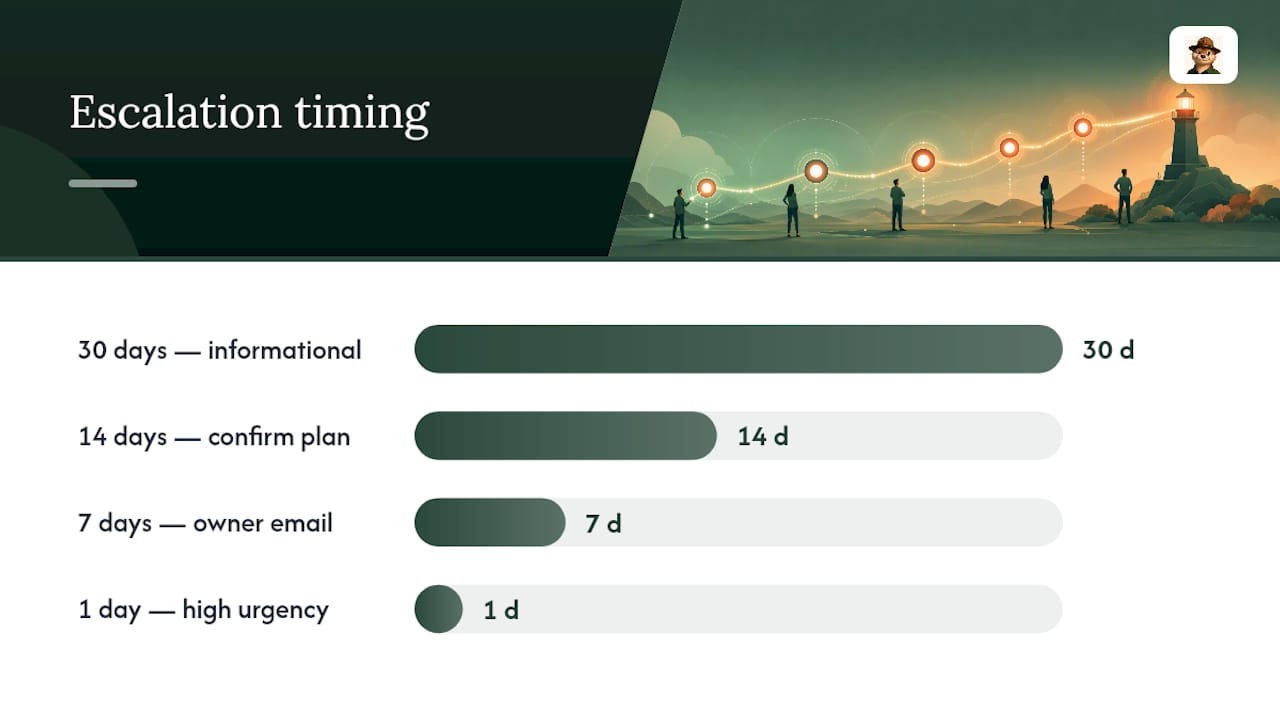
The escalation cadence is where most teams either get it right or drown in noise. A workable example:
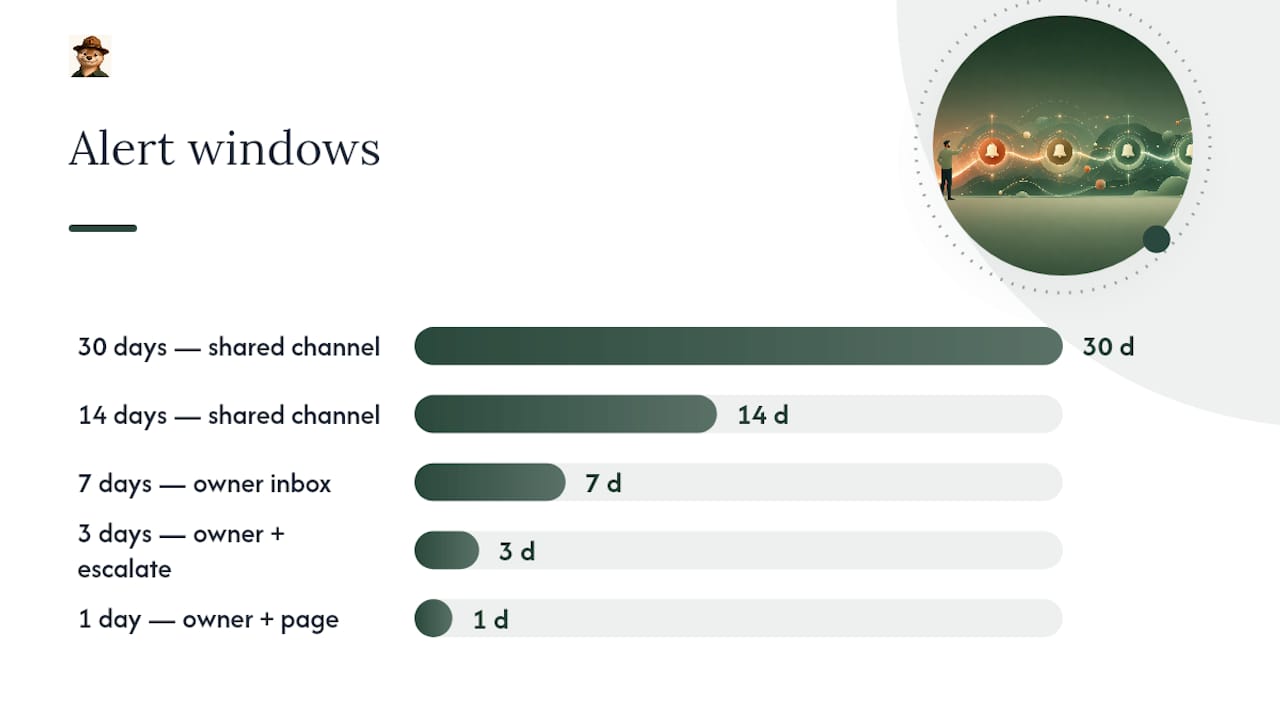
- 30 days out: informational, goes to a team channel or creates a low-priority ticket
- 14 days out: same channel, tone shifts from “FYI” to “please confirm renewal is scheduled”
- 7 days out: direct email to the owner, ticket opens if one doesn’t exist
- 3 days out: direct email plus SMS or pager
- 1 day out: immediate, high-urgency alert to owner and backup
Chain problems, hostname mismatches, and certificates that have already expired should never wait for a scheduled window. Those trigger immediately, no cadence required.
Statistic Callout: Guidance built around 30/14/7 and 1-day escalation windows exists because a single warning email is easy to miss during a busy week. Multiple staggered touches, spaced further apart early and closer together as the deadline nears, are what actually get renewal work scheduled instead of forgotten.
Adjust thresholds for certificate lifetime. A Let’s Encrypt certificate lasting 90 days needs its 30-day alert to land with real urgency, since that’s already a third of its life gone. A one-year commercial cert can tolerate a longer runway before the first ping.
How Do You Configure Email Alerts So They Get Acted On?
An alert that just says “certificate expiring soon” wastes everyone’s time. The recipient has to go hunting for which certificate, on which server, and who’s supposed to fix it. Build the email so it answers those questions before anyone has to ask.
- Hostname and SAN list so there’s no ambiguity about which service is affected.
- Expiry date and issuer, stated plainly, not buried in a certificate dump.
- Owner name, pulled straight from your inventory, so the alert lands on someone’s plate, not everyone’s.
- Fingerprint or thumbprint for anyone who needs to confirm exactly which certificate instance is being discussed.
- A one-line remediation hint: “renews via Let’s Encrypt cron on web-3, check /var/log/letsencrypt” beats a blank template every time.
- Links to the inventory record and an open ticket, if one exists.
Route by window, not by whim. Early alerts (30 and 14 days) can go to a shared team channel or open a low-priority ticket. Late alerts (7, 3, and 1 day) go straight to the owner’s inbox and, where the tier justifies it, SMS or a pager. Anything showing an active chain or hostname mismatch, or a cert that’s already expired, should page immediately and open a ticket automatically. Routing decisions like this, described in detail in escalation guidance for expiring certificates, work because later windows are designed to interrupt someone’s day, not just inform them.
To avoid fatigue, build in an acknowledgement step. Someone confirms they’ve seen the 7-day alert and are handling it, which suppresses the next scheduled reminder but not the escalation if the certificate is still unrenewed at 3 days.
Pro Tip: Give every alert tier a clear “done” condition. If the success criteria for a 30-day alert is just “someone opened the email,” you’ll never know if it actually got fixed.
How Do You Test Email Alerts From an External Connection?
Checking your own site in a browser tells you almost nothing useful. Browsers cache valid certificates and can resume an existing TLS session without renegotiating, so you might be looking at a perfectly fine result while the certificate is actually broken for anyone hitting the server fresh. This “it works in my browser” trap is one of the most common false negatives in certificate monitoring, and it’s exactly why testing has to happen from a cold, external probe: a fresh connection, from outside your network, with no cached session to lean on.
To rehearse a renewal safely, use a staging subdomain or a low-priority domain first, run the actual deployment path you’d use in production, and compare the certificate fingerprint before and after. If the fingerprint hasn’t changed, the renewal didn’t actually deploy, even if the renewal tool logged success.
Before you trust any alert pipeline, run through this checklist on a real hostname:
- notAfter date matches what you expect
- Full chain is present, not just the leaf certificate
- Hostname and SANs match what’s being served
- Fingerprint differs from the pre-renewal certificate
- A follow-up external probe, run a few minutes after deployment, confirms the new cert is live
Automation failing silently is common enough that monitoring after renewal is treated as a separate step from running the renewal itself, not a redundant one.
What Should the Alert Recipient Do First?
An alert is only useful if the person receiving it knows exactly what to do next. Build this as a short, ordered runbook and attach it to your inventory so nobody has to improvise under time pressure.
- Acknowledge the alert so it stops re-sending and so others know someone’s on it.
- Confirm you’re the right owner. If not, reassign immediately rather than sitting on it.
- Check the inventory record for renewal method and deployment path.
- Open a ticket if the alert didn’t already create one, especially for 7-day and closer windows.
- Diagnose the likely cause: auto-renew failure (check cron logs), a DNS or CAA record blocking issuance, or a renewal that succeeded but never got reloaded on the actual server.
- Escalate if there’s no owner response within a defined window, if auto-renew has failed twice in a row, or if a production certificate has already expired. Escalation means notifying a backup owner or manager directly, not just resending the same email.
- Document what fixed it, even briefly, so the next person (possibly you, in eleven months) isn’t starting from zero.
The SSL Expiry Notification Setup guide walks through configuration examples if you want to see this runbook paired with actual alert setup.
Setting Up Email Alerts on Common Tools
If you’re doing this with a cron job, the classic approach is a script calling openssl s_client or curl against each hostname once a day, then piping results into a mail command when a threshold is crossed. It works for a handful of certificates. It breaks down as your inventory grows, because DIY cron checks routinely miss alternate IPs and full chain validation, and cron output that nobody reads is the same as no alert at all.
For most small teams, a monitoring service is the faster, more reliable path. The general setup flow looks similar across tools:
- Add each hostname from your inventory as a monitored target.
- Set your alert email address (or addresses, for shared and direct routing).
- Choose check intervals for expiry and uptime separately.
- Set your escalation windows (30/14/7/3/1 days is a solid starting template).
- Send a test alert before you rely on the system for anything real.
- Confirm the test email didn’t land in spam, since transactional alert mail sometimes gets filtered on first contact.
If you’re using a general email client’s own rule system to sort incoming alerts rather than configuring the monitoring tool itself, set up a filter that routes anything from your monitoring service’s sending domain into a dedicated folder or label, and whitelist that sender address so nothing gets buried. A comparison of monitoring approaches is worth a look if you’re deciding between a script you maintain yourself and a service that handles the checking for you.
How Do You Avoid Alert Fatigue From Too Many Emails?
The fastest way to make people stop reading alerts is to send too many of them. Once someone starts skimming past your subject lines, even the urgent ones get ignored, and that’s the exact failure mode you built the system to prevent.
Keep the informational tiers (30 and 14 days) genuinely low-key, ideally batched into a single daily digest rather than one email per certificate. Reserve direct, individually-sent emails for the windows that actually require action, 7 days and closer.
Separate certificate alerts from uptime alerts in your subject line conventions, so a glance at an inbox tells you which system triggered it. Something like “[SSL] example.com expires in 7 days” versus “[UPTIME] example.com unreachable” lets recipients triage without opening anything.
Suppress repeat alerts for the same issue once it’s acknowledged, but don’t suppress escalation. An acknowledged 7-day alert should still fire a 3-day alert if the certificate hasn’t actually renewed. Silence should mean “resolved,” never “someone saw it once.”
Review your tiering periodically. A domain you tagged Tier 2 eight months ago might now be running a customer-facing feature. Static tiers rot quietly, and they only get noticed when an alert that should have paged someone instead landed in a digest nobody opened that week. Integrating certificate checks into the same pipeline as your uptime alerts, rather than running two separate systems, also cuts down on the tool sprawl that tends to fragment attention across inboxes.
What Security Steps Matter When Setting Up Email Alerts?
The alert pipeline itself becomes a target if you’re not careful, mostly because it touches credentials and infrastructure details that shouldn’t leak.
Protect the account sending your alert emails with a strong, unique password and multi-factor authentication, since a compromised alerting account can be used to send convincing phishing emails that look like they came from your own monitoring system. If your monitoring tool needs API keys or SMTP credentials, store them in a secrets manager or environment variable rather than hardcoding them into a script that might end up in a public repository.
Be deliberate about what alert emails actually contain. A remediation hint pointing to an internal server path is useful for your team, but that same detail becomes reconnaissance information if the email account it’s delivered to gets compromised. Keep alert recipient lists tight and reviewed periodically, removing former employees and contractors promptly rather than assuming someone else will.
If you’re routing alerts through a shared team inbox, restrict who can access that inbox and audit login activity where your provider allows it. And don’t ignore the alert emails you send yourself as test messages. A test alert sitting in an unmonitored inbox for months, with real hostnames and owner names attached, is a small but avoidable exposure.
Why Aren’t My Email Alerts Arriving?
Most delivery problems trace back to one of four causes, and checking them in order usually finds the culprit fast.
Spam filtering is the most common. Whitelist your monitoring tool’s sending domain and check your spam folder before assuming the alert never sent.
Incorrect recipient configuration happens more than you’d think, especially after a team member leaves and nobody updates the alert list. Cross-check your recipient list against your current inventory owners at least quarterly.
SMTP or authentication failures on the sending side, if you’re running your own alerting script, often fail silently. Test the actual send function separately from the certificate check logic, since a broken mail step can sit undetected for weeks while the checks themselves run fine.
Threshold misconfiguration is sneakier. If your 30-day alert never fires, check whether the tool is comparing against the correct timezone or date format, since off-by-one date bugs are a frequent cause of alerts arriving a day late or not at all.
If you’ve verified all four and alerts still aren’t showing up, send a manual test alert and trace it through your own inbox rules, forwarding filters, and any middleware (like a ticketing system integration) that might be silently dropping messages before they reach a human.
A Practical Take on Keeping Alerts Calm
Small teams don’t need enterprise monitoring sprawl. They need fewer things watched well, longer early-warning windows because nobody’s staffing a 24/7 on-call rotation, and alerts routed to a specific person instead of a channel everyone half-reads.
That’s the trade-off worth making deliberately: monitor less broadly, but monitor the certificates that matter with real ownership attached. Otterwatch was built around that same instinct, treating certificate expiry as the primary signal and keeping uptime checks as a secondary layer riding along on email, the one channel almost everyone actually checks daily.
The conventional wisdom says more monitors and more channels equal better coverage. For a five-person team, it usually just equals more noise nobody trusts.
— Nick Phillips
Try Certificate-First Email Alerts With Otterwatch
Some monitoring tools focus on dashboard complexity, but many offer certificate expiry and change monitoring plus site reachability checks from an external vantage point instead of relying on local scripts.
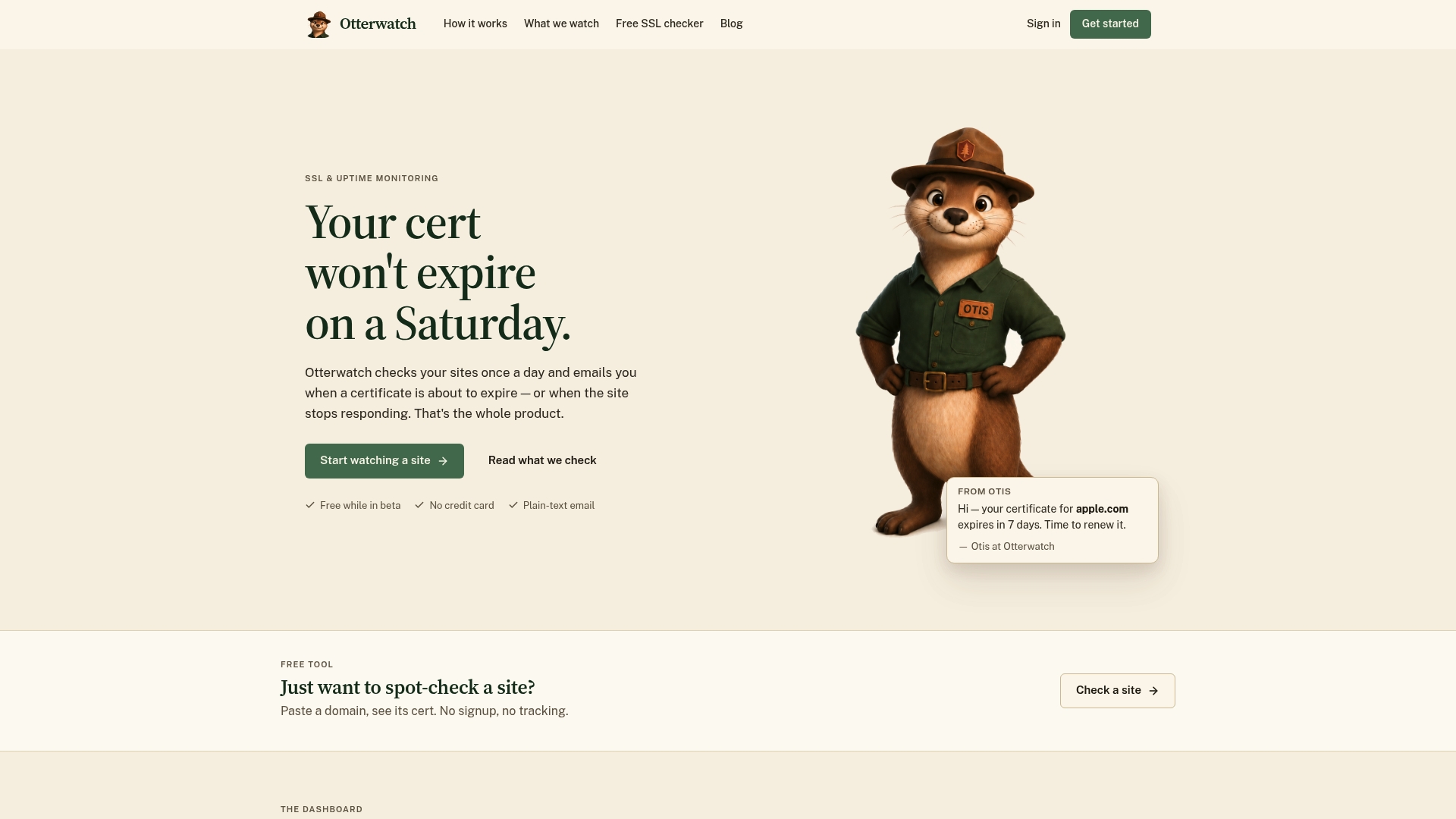
Getting started takes about the same time as reading this article. Add a site, let it discover the certificate automatically, pick your alert windows (30/14/7/3/1 days works well as a default), and confirm the setup with a real external probe rather than a browser tab. Many monitoring services offer a free tier for a limited number of domains with staggered email alerts included from the start, reducing reliance on manual cron jobs. If you just want to check a certificate right now without setting anything up, the free SSL checker will tell you what’s actually being served. When you’re ready for ongoing monitoring, set it up on Otterwatch and let Otis handle the watching.
Sources
- SSL Certificate Monitoring: The Complete Guide for 2026 | Alert24
- Certificate Expiration Monitoring Playbook
- Icinga — SSL certificate monitoring (blog)
- SSL Certificate Expiry Monitoring: The 30/15/7-Day Alert Rule
FAQ
How Do I Set Up Email Alerts for SSL Expiry?
Inventory every TLS hostname, assign an owner to each, then configure staggered alerts (commonly 30, 14, 7, 3, and 1 day before expiry) through either a monitoring script or a service like Otterwatch that handles the checks externally.
What’s the Best Alert Schedule for Certificate Expiry?
A 30/14/7/3/1-day escalation cadence gives early awareness without urgency, then shifts to direct, high-priority alerts as the deadline nears, which matches the staggered approach outlined in certificate monitoring guidance.
Why Do I Still Need Alerts If Auto-Renewal Is Set Up?
Auto-renewal scripts fail silently more often than expected, through failed cron jobs, missed reload steps, or DNS validation issues, so monitoring confirms the renewal actually deployed to the live endpoint.
How Do I Test That an Email Alert System Actually Works?
Send a test alert and verify it from a cold external connection, not your own browser, since cached sessions can mask a real certificate problem.
Can Email Alerts Cover Both SSL and Uptime Monitoring?
Yes. Tools like Otterwatch route both certificate expiry and uptime checks through the same email pipeline, which keeps you from managing two separate alert systems for one website.
Recommended
- SSL Expiry Notification Setup: A Practical Guide
- SSL Certificate Expiry Alert Types: 2026 Guide
- Certificate Expiration Notification Explained for Site Owners
- Certificate Expiration Check Script: A Practical Guide
Catch the next cert expiry before your users do.
Otterwatch checks your SSL certificates daily and emails you 30 days before they expire. Five sites free.
Start watching →