5 Copy Ready Downtime Email Templates for Small Teams, SSL First
By Nick Phillips, Founder
5 Copy Ready Downtime Email Templates for Small Teams, SSL First
Use a subject line with a bracketed severity tag plus the site and environment, then a two to four line body. A working subject is [DOWN] example.com – Prod – /api – Confirmed, and the body needs the start time, the monitor name, the check type, the target, and a link to history. Paste this into your monitoring tool’s alert body, swap in your own values, and you have a working downtime email template before you read another word.
TL;DR:
- Confirmation rules requiring at least two regions or three consecutive failed checks significantly reduce false positives and prevent unnecessary alerts.
- Three escalations for SSL certificates—30/15/7 days—are standard, but shorter cycles like 14/7/1 days suit short-lived certificates, with critical alerts sent via SMS or pager close to expiry.
- Alert subjects should be concise, including severity, site, environment, target, and status within 60 characters, to ensure quick triage from mobile devices.
- Downtime alerts must include specific details such as start time, error codes, monitored region, and links to dashboard or history; recovery messages need only timestamps and duration.
- Customizing alert templates for internal teams, customers, and stakeholders enhances clarity, with internal alerts containing detailed diagnostics and external messages focused on reassurance and estimated resolution time.
Table of Contents
- What Fields Belong in Every Downtime and SSL Alert Email?
- How Should You Write the Subject Line?
- Copy-Ready Templates for Downtime, Recovery, and SSL Alerts
- What Escalation Schedule Actually Works for Small Teams?
- How Do You Make Sure the Alert Actually Arrives?
- Matching Template Tone to Your Organization
- How Often Should Downtime Alerts Actually Fire?
- Sending the Right Version to Each Audience
- Connecting These Templates to Your Monitoring Tool
- Writing a Call to Action That Gets Someone to Actually Act
- Why Calm, Certificate-First Alerts Beat Loud Dashboards
- Get These Alerts Without Building Them Yourself
- Sources
- FAQ
What Fields Belong in Every Downtime and SSL Alert Email?
A good alert email answers five questions before the reader finishes their coffee: what broke, when, how do you know, who owns it, and where do I look for more. Miss one of those and you get a Slack thread full of “wait, which region?” instead of a fix.
The most reliable alert templates list monitor name, check type, target URL, error, regions or probes, confirmation status, impact guess, owner, and links to the dashboard or runbook. That is not a nice-to-have list. Leave out the confirmation status and someone restarts a server that was never down, just slow to respond from one probe.
Here is the full field checklist, with the format that keeps each one scannable:
- Start time in an ISO-like format with timezone, e.g.,
2026-03-12 14:07 UTC, so nobody has to guess whether that is local or server time. - Monitor name, the label you gave the check in your dashboard (e.g.,
prod-api-healthcheck). - Check type: HTTP, SSL, API, or ping, so the reader knows whether to check DNS or check a cert.
- Target URL or endpoint, the exact path, not just the domain.
- Error classification, a short code like
TIMEOUT,5xx,CERT_EXPIRED, orHANDSHAKE_FAIL. - Regions or probes that reported the failure, e.g.,
us-east, eu-west (2/3). - Confirmation status, stating how many checks agreed before the alert fired.
- Impact guess, one honest line: “likely affects checkout” beats silence.
- Owner or route hint, the person or team this lands on.
- Links to monitor history, a runbook, or an incident channel.
Pro Tip: Set a confirmation rule of at least two regions or three consecutive failed checks before an email fires. A single flaky probe should never wake anyone up, and that one rule kills most of your false positives.
A useful downtime email, at minimum, states what is down, when it started, a clear error or status indicator, and links to the monitor dashboard and incident history. Everything else is context that speeds up the fix.
How Should You Write the Subject Line?
The subject line is the whole email for anyone triaging from a phone. A pattern that filters cleanly and reads at a glance is:
[SEVERITY] {Site} – {Env} – {Target} – {Status}
That gives you something like [DOWN] example.com – Prod – /api – Confirmed, which tells a reader everything they need before they even open the message. Short, plain-language alerts with clear owner hints get acted on faster than terse, cryptic subject lines, so resist the urge to compress this into an acronym soup.
Four subjects cover almost every case a small team hits:
- Confirmed downtime:
[DOWN] example.com – Prod – / – Confirmed (2/3 regions) - Recovery:
[RESOLVED] example.com – Prod – / – Back up after 6 min - SSL early notice:
[SSL-30] example.com – Cert expires in 30 days - SSL action or critical:
[SSL-7] example.com – Action needed, expires in 7 days
Keep subjects under about 60 characters where you can, since some inbox previews truncate past that. Include the environment (Prod, Staging) so nobody escalates a staging blip at 2 a.m., and add an owner tag like (@backend-team) if your alerting tool supports it, since that alone speeds up routing more than almost any other tweak.
Copy-Ready Templates for Downtime, Recovery, and SSL Alerts
Five templates cover nearly every alert a small team’s monitoring setup will ever send. Each one pre-fills the checklist fields from the section above, so you are editing values, not writing from scratch.
Confirmed downtime alert
Subject:
[DOWN] {site} – {env} – {target} – ConfirmedMonitor:{monitor_name}· Type:{check_type}· Started:{timestamp}Error:{error_code}· Confirmed by:{regions}({n}consecutive failures) Impact:{impact_guess}· Owner:{owner}· History:{link_to_dashboard}
Route this to email plus SMS or a pager for production targets. Staging targets can stay email-only.
Recovery notice
Subject:
[RESOLVED] {site} – {env} – {target} – Back up after {duration}Resolved at:{timestamp}· Total downtime:{duration}Root cause (if known):{cause}· Full history:{link}
Email is enough here. Nobody needs a pager buzz to tell them the fire is out.
SSL early notice (around 30 days out)
Subject:
[SSL-30] {domain} – Cert expires {expiry_date}Issuer:{issuer}· Auto-renew configured:{yes/no}· Action needed: none yet, just confirming renewal is on track.
SSL action alert (around 7 to 14 days out)
Subject:
[SSL-14] {domain} – Action needed, expires {expiry_date}Auto-renew status:{status}· Owner:{owner}· Backup owner:{backup_owner}If auto-renew has not completed by{date}, renew manually:{link_to_runbook}
SSL critical alert (1 day out or renewal failed)
Subject:
[SSL-1] {domain} – CRITICAL, expires {expiry_date}Auto-renewal failed or unconfirmed. This needs a person, now. Owner:{owner}· Backup:{backup_owner}· Escalation:{pager_or_phone}
Add SMS or pager routing to that last one without exception. An SSL certificate that lapses silently takes your site down just as hard as a server crash, and email alone is too easy to miss on a Friday evening.
What Escalation Schedule Actually Works for Small Teams?
Certificate expiry alerts fail for one boring reason more than any other: they land in a shared inbox nobody checks, or the first warning arrives too late to matter. A three-layer escalation with a named owner per certificate fixes most of that on its own.
The classic ladder is 30/15/7 days out. Teams running short-lived certificates, or leaning hard on automated renewal, often tighten that to 14/7/1, since staggered alerts spaced closer together suit certificates that renew on shorter cycles. Either way, the goal is the same: the first alert should be a calm heads-up, not a fire drill.
| Rung | Days out | Channel | Recipient |
|---|---|---|---|
| Planning | 30 (or 14) | Email or ticket | Primary owner |
| Action | 15 (or 7) | Email + Slack | Owner + backup |
| Critical | 7 (or 1) | SMS or pager | Owner, backup, on-call |
| Emergency | Expired | Pager + phone | Owner, backup, management |
Set a primary owner and a backup for every certificate, not a shared alias. A single-person inbox is exactly the failure mode that lands you a lapsed certificate on a Saturday.
How Do You Make Sure the Alert Actually Arrives?
An alert nobody sees is worse than no alert at all, because it gives you false confidence. Sending test notifications to every intended recipient, and checking that they land outside the spam folder, is the single most effective habit here.
Run through this before you trust any new alert route:
- Send a manual test notification to each recipient’s actual inbox, not just your own.
- Verify SPF, DKIM, and DMARC are configured for your sending domain so mail providers do not quarantine you.
- Add an inbox rule or filter that whitelists the sender and skips the spam folder.
- Confirm delivery lands in the expected one to three minute window, not twenty minutes later.
- Repeat the test monthly, and again any time you switch monitoring tools or email providers.
For anything on the critical or emergency rung of your escalation ladder, add SMS or a pager service as a fallback. Email delivery is generally fast and reliable, but “generally” is not good enough for a certificate that expires in one day.
Matching Template Tone to Your Organization
A five-person startup and a regulated finance team should not send the same alert email, even for the identical failure. Monitoring email design should vary by audience: a solo founder wants a short, friendly nudge, while a compliance-heavy team often needs a formal record with timestamps that hold up in an audit.
For a solo owner or a two-person team, keep the templates above almost exactly as written. Plain language, one owner field, and a single backup recipient are enough. Adding process here mostly adds friction nobody needed.
Larger teams tend to want more structure without more noise. That usually means adding a ticket ID field, a link to a status page, and a “next update by” line so stakeholders are not left refreshing their inbox. Regulated industries sometimes need a permanent record field too, noting who acknowledged the alert and when, since that detail can matter later for a postmortem or a compliance review.
Whatever you add, resist the instinct to make every alert formal by default. An email that reads like a legal notice trains people to skim past it, and skimmed alerts are exactly how a real outage gets missed. Keep the core fields intact, adjust only the tone and the extra metadata your team genuinely needs, and test any change against a real incident before rolling it out everywhere.
How Often Should Downtime Alerts Actually Fire?
Alert fatigue kills good monitoring faster than any technical failure does. Once a team starts ignoring emails because half of them turned out to be nothing, the one alert that matters gets ignored right along with the noise.
Confirmation rules do most of the heavy lifting here. Requiring two regions or three consecutive failed checks before an email fires, as covered earlier, cuts a large share of the noise before it ever reaches an inbox. Beyond that, avoid sending a fresh downtime alert every few minutes while an incident is still ongoing. One initial alert, one update at a reasonable interval (say, every 30 minutes for a prolonged outage), and one recovery notice is usually enough.
SSL expiry alerts follow a different rhythm, since they are a countdown rather than a live incident. Sending one alert at each rung of your escalation ladder, rather than a daily nag from day 30 onward, keeps the signal meaningful. A tighter final rung close to expiry is worth the extra noise, because that is the one message that genuinely justifies an SMS or a pager buzz.
Sending the Right Version to Each Audience
The same outage needs three different emails, not one email forwarded three times. Internal teams need the raw diagnostic detail. Customers need reassurance and a timeline. Stakeholders need business impact, not a stack trace.
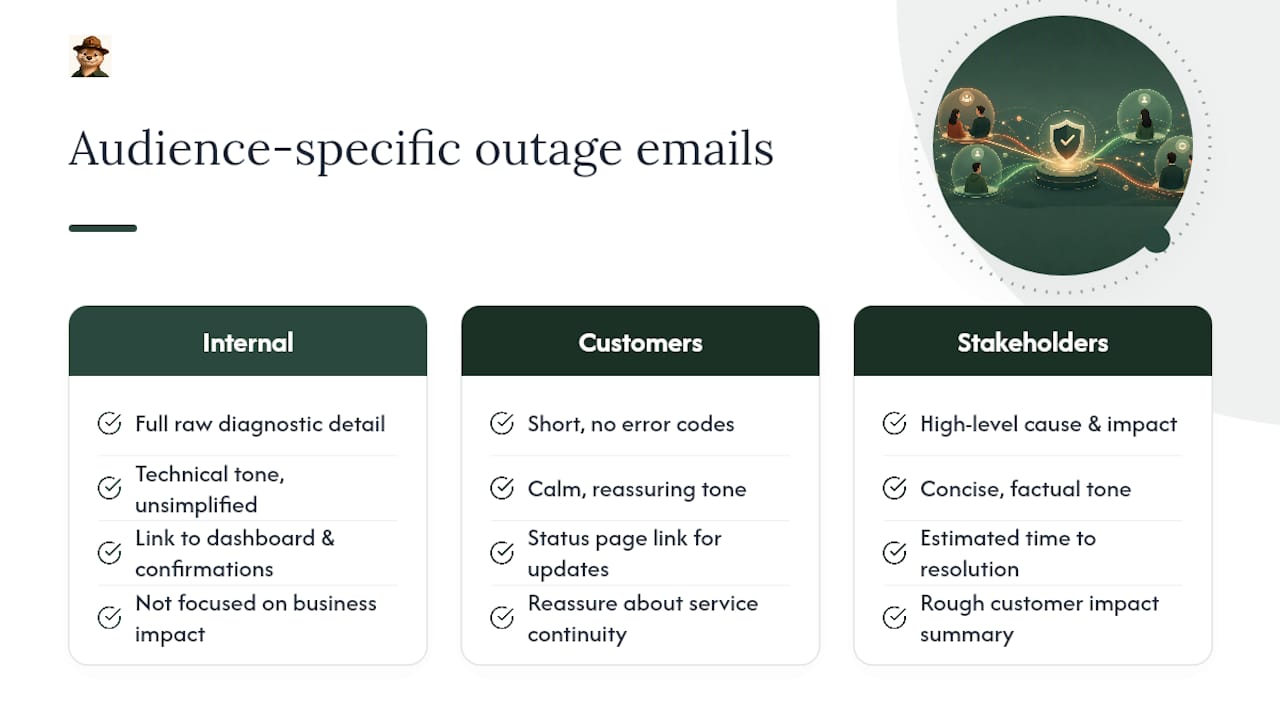
Internal IT or on-call team gets the full technical template from earlier: error codes, regions, confirmation counts, and a direct link to the dashboard. Nothing softened, nothing summarized.
External customers need something shorter and calmer: “We’re aware of an issue affecting [service] and are working on it. Updates at [status page link].” No error codes, no internal jargon, and definitely no speculation about root cause until you actually know it.
Stakeholders or leadership want the middle ground: what broke, rough customer impact, and an estimated time to resolution, without the field-by-field detail an engineer needs. A single paragraph usually covers it: “Our API experienced downtime starting at 2:07 PM, affecting checkout for roughly 12 minutes. Root cause identified, fix deployed, monitoring for recurrence.”
Keep these three versions as separate saved templates, not one template with sections you delete under pressure. During a real incident, you will not have the patience to edit a technical email down to something customer-safe. Write all three in advance, while everything is calm.
Connecting These Templates to Your Monitoring Tool
Nearly every uptime or certificate monitoring tool lets you customize the alert email body, not just the recipient list. Look for a template or variables section in your tool’s alert settings. That is where the placeholder fields above ({timestamp}, {monitor_name}, {error_code}) get mapped to the tool’s actual data.
Most platforms support this through one of two mechanisms: a webhook that posts to an email-sending service, or a native email template editor with variable substitution. If your tool only offers a fixed, unformatted alert email, check whether it supports webhook integrations instead, since a webhook lets you route the same alert data into a custom template, a Slack message, and a pager service simultaneously.
For certificate-specific alerts, staggered thresholds should line up with your renewal automation’s actual trigger point, not an arbitrary calendar date. If your automated renewal fires at 30 days, your first alert should sit past that point, so it only fires when the renewal has actually missed, not during its normal window. Getting that offset wrong is one of the most common reasons teams start ignoring their own SSL alerts. It’s also worth treating handshake or configuration failures as a separate alert class from expiry countdowns, since a mismatched certificate needs an immediate page, not a 30-day warning.
Writing a Call to Action That Gets Someone to Actually Act
An alert email without a clear next step just becomes something to read and close. Every template above should end with an instruction, not just a status report.
For downtime alerts, the call to action is usually a link: “Check live status” or “View incident history,” pointed straight at your monitoring dashboard. For SSL alerts past the early notice stage, be direct: “Renew now” or “Confirm auto-renewal completed,” with a link to the exact place that action happens, not a general admin login page.
Avoid vague closers like “please investigate when you can.” That phrasing lets a genuinely urgent issue sit in someone’s inbox for a day. Instead, name the deadline: “Respond within 15 minutes if this is a false positive” or “Certificate expires in 24 hours. Renew before end of day.” A specific deadline turns a passive notification into something that demands a decision.
If a recipient is not the right owner for a given alert, give them an obvious way to redirect it, like a “reassign” link or a note on who the backup contact is. That one addition prevents the second most common failure after the shared inbox problem: an alert sitting with someone who cannot actually fix it.
Why Calm, Certificate-First Alerts Beat Loud Dashboards
Most monitoring tools are built to make you feel the size of the problem, red banners, siren icons, dashboards that look like mission control. That design choice makes vendors feel important. It does not make responders faster.
What actually gets someone to act is an email that answers the five questions from the top of this piece without making them dig for the answers. Certificate expiry deserves the same calm treatment as an outage, not less urgency just because nothing is broken yet. The teams that get burned by a lapsed certificate almost always had a working alert system. They just had it routed to one inbox nobody checked that week.
One habit consistently prevents that: assign a backup recipient to every certificate individually, not to a general “IT” distribution list. A distribution list feels like coverage. It rarely is.

— Nick Phillips
Get These Alerts Without Building Them Yourself
Otterwatch turns every template above into an email you never had to write, sent from a service that watches your certificates first and your uptime as the calm bonus. Instead of assembling subject-line conventions and escalation ladders by hand, you get plain, friendly alerts with the fields covered here already filled in, and a free tier that covers five sites with no credit card required.
Run your domain through the free SSL certificate checker to see the exact alert format before you commit to anything, or head to Otterwatch to set up monitoring on your first five sites at no cost. If you already run monitoring elsewhere and just want better-routed certificate alerts, that free check takes under a minute and shows you exactly what you have been missing.
Sources
- Notifier
- Website monitoring: uptime alerts best practices - SSL Shopper
- SSL Certificate Expiry Monitoring: The 30/15/7-Day Alert Rule
FAQ
What Is the Best Subject Line for a Downtime Email?
Use the pattern [SEVERITY] {Site} – {Env} – {Target} – {Status}, such as [DOWN] example.com – Prod – /api – Confirmed. It filters cleanly and tells a reader the severity before they open the message.
How Many Failed Checks Should Confirm a Real Outage?
A common rule is two regions or three consecutive failed checks before an alert fires, which cuts most false positives caused by a single flaky probe.
What Escalation Schedule Should Small Teams Use for SSL Expiry?
The classic ladder is 30/15/7 days out, tightened to 14/7/1 for short-lived certificates, ending with SMS or pager routing on the final rung before expiry.
Should Downtime and Recovery Alerts Go to the Same Recipients?
Generally yes for internal teams, but customer-facing recovery messages should be shorter and calmer than the internal technical alert, without error codes or region detail.
Can Otterwatch Send These Templates Automatically?
Otterwatch sends certificate-first alerts styled around this same plain-language, friendly approach, with free monitoring for up to five sites and no setup beyond adding a domain.
Recommended
- Small Teams: Set Up Certificate First Email Alerts (30/14/7/3/1 Days)
- SSL certificate monitoring tools, honestly compared
- SSL Expiry Notification Setup: A Practical Guide
- SSL Certificate Best Practices for Small Business Sites
Catch the next cert expiry before your users do.
Otterwatch checks your SSL certificates daily and emails you 30 days before they expire. Five sites free.
Start watching →