One Minute Checklist to Fix ACME HTTP-01 Challenge Failures for Ops
By Nick Phillips, Founder
One Minute Checklist to Fix ACME HTTP-01 Challenge Failures for Ops

The ACME http-01 failure means Let’s Encrypt could not fetch your token at http://<domain>/.well-known/acme-challenge/<token> over plain port 80. Test that exact URL from an outside network right now. The usual suspects are a blocked port 80, a broken or stale AAAA record, a proxy or CDN intercepting the request, or an ACME client pointed at the wrong webroot.
TL;DR:
- Test the exact challenge URL externally: a timeout points to network access, a 404 to routing or webroot, and an unauthorized response to token mismatch.
- Let’s Encrypt may try IPv6 first when an AAAA record exists; correct stale records because fallback to IPv4 occurs only after a timeout.
- Check port 80 at the host firewall, cloud firewall, and router, and bypass the CDN temporarily to identify network blocks or intercepted challenge requests.
- Choose DNS validation for wildcard certificates, multiple frontends, or an ISP that blocks port 80; TXT records avoid HTTP routing and proxy failures.
- Use the client’s dry run option before production retries, then fix the underlying cause and wait if failed authorizations have reached a rate limit.
Table of Contents
- Quick checklist: 8 checks to run first
- DNS and IPv6 pitfalls: AAAA mismatches and preferred connections
- Port 80, firewalls, NAT, and ISP blocking
- Web server config: vhosts, webroot, and rewrite rules
- Proxies, CDNs, and Cloudflare: when the middle layer breaks things
- How to test and verify the challenge path from outside
- Recovery options: DNS-01, rate limits, and safe retries
- Operational perspective: building a workflow that catches this early
- A calmer way to catch this before it becomes an outage
- FAQ
- Sources
Quick checklist: 8 checks to run first
Before you go digging through logs, run these in order. Most http-01 failures get solved in the first four steps.
- Resolve your domain’s A and AAAA records publicly and confirm they point where you think.
- Curl the exact challenge path from an external machine and note whether you get a timeout, 404, redirect, or 200.
- Check for a stale AAAA record pointing at an IPv6 address your server doesn’t actually serve.
- Temporarily pause or bypass any CDN or reverse proxy in front of the domain.
- Confirm port 80 is open on the host firewall, the cloud security group, and any router or NAT layer.
- Verify your ACME client’s webroot path matches your web server’s actual document root.
- Read the full ACME client error output. Timeout, 404, and unauthorized point to different problems.
- Run the client with
--dry-runbefore you retry for real, so you’re not burning a production attempt on a guess.
Pro Tip: Write the test URL down once and reuse it for every check: same hostname, same path, same protocol. Comparing apples to apples is half the battle.
DNS and IPv6 pitfalls: AAAA mismatches and preferred connections
Let’s Encrypt’s validator prefers IPv6 when a domain has an AAAA record, even if that record is old, misconfigured, or pointing at a server that never got set up to answer on that address. If the IPv6 endpoint doesn’t serve the challenge file, validation fails even though your IPv4 setup is perfectly fine.
- Run
dig +short A yourdomain.comanddig +short AAAA yourdomain.comto see exactly what’s published. - Use
host yourdomain.comas a quick cross-check against a different resolver. - Test each path directly with
curl -4 http://yourdomain.com/.well-known/acme-challenge/testfileandcurl -6for the same. - If the AAAA record is unused or wrong, remove it, or update it to point at a host that actually answers on that path.
A stale AAAA record is often harder to debug than a missing one, since the failure only shows up on the IPv6 path and looks identical to a generic timeout from the outside. If you’re fuzzy on what an AAAA record actually does, Pingfloat’s reference on AAAA records walks through the basics cleanly.
One wrinkle worth knowing: the validator only falls back from IPv6 to IPv4 on a connection timeout, not on other error types, and a redirect in the mix can complicate that fallback further. If your IPv6 host returns a 404 or a redirect instead of timing out, you won’t get bailed out by IPv4 automatically.

Port 80, firewalls, NAT, and ISP blocking
The difference between a timeout and a connection refused matters a lot here. A timeout usually means something upstream (a firewall, a security group, an ISP) is silently dropping the packet. A connection refused usually means nothing is listening on port 80 at all, which points to your web server configuration rather than the network.
- Test from outside your own network: curl from a VPS, a friend’s connection, or tether to mobile data to rule out local network quirks.
- Try a public port checker to confirm reachability from a vantage point you don’t control.
- Check the host firewall (
ufw statusoriptables -L) for anything blocking inbound 80. - Check your cloud provider’s security group or firewall rules, separately from the OS-level firewall.
- Check router NAT and port-forwarding rules if you’re hosting behind a home or office connection.
Let’s Encrypt’s own guidance is to keep port 80 open and serve a redirect to HTTPS rather than closing it. If your ISP blocks port 80 outright, which does happen on some residential and mobile connections, DNS-01 or TLS-ALPN-01 are the documented workarounds.
Web server config: vhosts, webroot, and rewrite rules
A lot of “acme challenge error” cases turn out to be a mismatch between where your ACME client thinks the webroot is and where your web server is actually looking. The challenge file exists, but the server can’t find it, so you get a 404 or unauthorized response instead of a clean token match.
- Confirm a port-80 virtual host exists for the exact hostname being validated, not just a catch-all default.
- Check that the document root in that vhost matches the webroot path your ACME client writes to.
- Verify the ACME client process has write permission to create the
.well-known/acme-challenge/directory and file. - Review any rewrite or redirect rules in Nginx, Apache, or your CMS, and explicitly exclude
/.well-known/acme-challenge/from them. - If you’re using Certbot’s webroot or Nginx plugin, confirm the config reload actually succeeded. A failed reload leaves the old vhost serving traffic while Certbot thinks the new one is live.
Pro Tip: If you manage several sites behind one server, grew your vhost configs for the exact hostname before you touch anything else. Half the time the challenge is failing because a different vhost is answering first.
Proxies, CDNs, and Cloudflare: when the middle layer breaks things
A reverse proxy or CDN sitting in front of your origin can intercept, cache, or rewrite the request before it ever reaches your web server, which is a common cause of “http challenge validation failed” even when your origin is configured correctly.
- Cloudflare’s “Always Use HTTPS” setting or similar redirect rules can bounce the plain-HTTP challenge request to HTTPS, which the validator doesn’t follow the same way.
- Bot protection or firewall rules on the proxy layer sometimes block the ACME user agent outright.
- A cached 404 from before your server was configured correctly can keep failing validation even after you fix the origin, until the cache clears.
- Set a page rule or bypass rule that excludes
/.well-known/acme-challenge/from caching and from HTTPS redirection. - On managed platforms, confirm the origin receives the original path and hostname unchanged, since some forwarding setups rewrite headers in ways that break hostname-based routing.
Pausing the proxy entirely for a few minutes is often the fastest way to confirm whether it’s the culprit before you start tweaking individual rules.
How to test and verify the challenge path from outside
Reproducing exactly what Let’s Encrypt sees is the fastest way to stop guessing. Drop a test file at the real challenge path and fetch it the same way the validator would.
curl -I http://yourdomain.com/.well-known/acme-challenge/testfileto check headers and status without downloading the body.curl -4andcurl -6separately to isolate which IP family is failing, per the IPv6 behavior Let’s Encrypt documents.curl --resolve yourdomain.com:80:1.2.3.4 http://yourdomain.com/.well-known/acme-challenge/testfileto force a specific IP and test the host header independently of DNS.- Check a public checker tool or a second external network to rule out a single-vantage-point fluke.
Pro Tip: Certbot’s error text usually tells you exactly which category you’re in: a timeout points to network or firewall, a 404 points to webroot or routing, and “unauthorized” points to a content mismatch or host confusion. Read the whole line before you start changing config.
Recovery options: DNS-01, rate limits, and safe retries
If HTTP-01 keeps failing for structural reasons (wildcard certificates, a distributed set of frontends, or a port 80 your ISP blocks), DNS-01 validation is the documented alternative. It proves control of the domain through a TXT record instead of a fetchable file, which sidesteps every one of the webroot and proxy problems above.
- DNS-01 is required for wildcard certificates and tends to be simpler for setups with many frontends behind one domain.
- Use
--dry-runwhile you test fixes, since it validates the flow without counting against production issuance. - Rate limits apply to failed authorizations, and that quota refills slowly, so repeated blind retries can lock you out of real attempts for a while.
- If you’ve already hit a limit, fix the underlying cause first and wait rather than hammering the same broken config.
Operational perspective: building a workflow that catches this early
Most http-01 failures trace back to something that changed: a DNS update, a new CDN rule, a server migration. Treat certificate renewal checks as part of your change control process, not an afterthought. Re-run the one-minute checklist any time DNS, proxy, or hosting configuration shifts, even when nothing seems related to certificates.
A synthetic check that fetches /.well-known/ from a couple of external vantage points on a schedule catches a lot of these before renewal day. It’s also worth writing down a short emergency plan: how to roll back a DNS change quickly, how to disable a proxy rule in a hurry. Renewals failing silently in production is usually a documentation gap, not a technical one.
— Nick Phillips
A calmer way to catch this before it becomes an outage
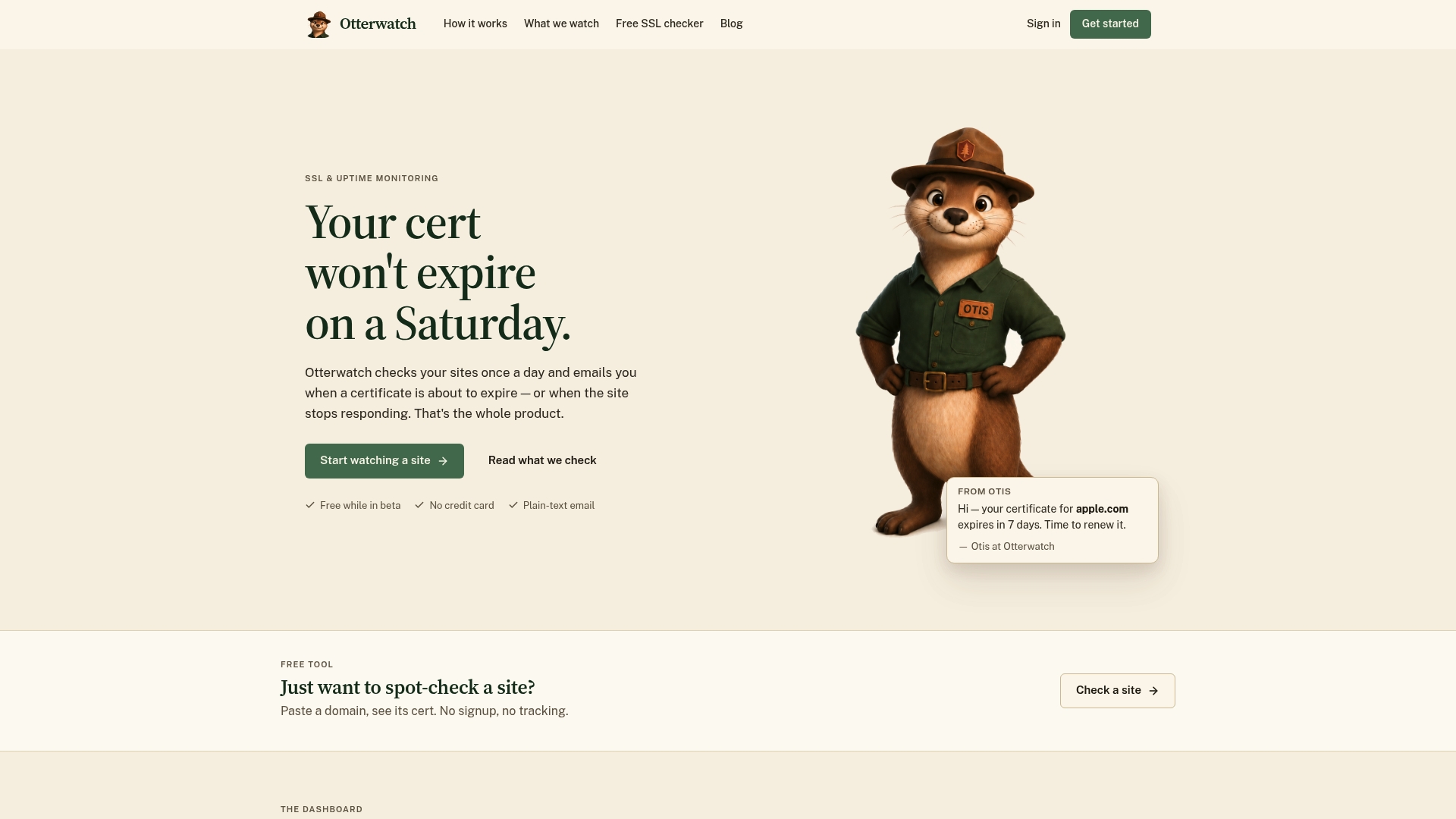
We built Otterwatch because most of this troubleshooting happens after something has already broken, usually right as a certificate is about to expire. Instead of discovering a failed renewal from an angry user or a browser warning, we watch your certificate expiry and basic reachability continuously and send a plain, friendly heads up well before anything lapses. No dashboards full of graphs, no alarm language, just a note that tells you what’s actually going on.
- We offer a free plan that covers core expiry and uptime alerts for a limited number of domains.
- Our Pro plan, at $15 per month, adds deeper certificate monitoring, change detection, and more integrations as they roll out.
- Our free SSL certificate checker is a fast way to confirm what state a certificate is in right now, no account needed.
We won’t fix a misconfigured proxy or a stale AAAA record for you. What we will do is make sure you find out about a renewal problem days before it becomes a production incident instead of after. Check your pricing options or start with the five free domains.
FAQ
What does “acme challenge failed” actually mean?
It means the certificate authority tried to fetch a specific token file over plain HTTP on port 80 and couldn’t, whether due to a timeout, a 404, or an unauthorized response. The HTTP-01 challenge type requires that exact fetch to succeed before a certificate can be issued.
Why does my site fail validation only sometimes?
Intermittent failures usually point to a mismatch between IPv4 and IPv6 paths, where one works and the other doesn’t, or a CDN cache serving a stale response some of the time. Testing both curl -4 and curl -6 against the exact challenge path usually isolates which one is inconsistent.
Should I use DNS-01 instead of HTTP-01?
DNS-01 is worth switching to if you need wildcard certificates, have a distributed set of frontends, or your ISP blocks port 80 outright. It validates through a TXT record rather than a fetchable file, which avoids the webroot, proxy, and port issues that cause most HTTP-01 failures.
How do I avoid hitting Let’s Encrypt rate limits while troubleshooting?
Use --dry-run while testing fixes, since it doesn’t count against your failed-authorization quota. If you’ve already failed several real attempts, fix the root cause and wait for the limit to refill rather than retrying repeatedly.
Can a CDN like Cloudflare cause this error on its own?
Yes, settings like forced HTTPS redirects, bot protection, or a cached 404 response can all block or alter the challenge request before it reaches your origin server. Pausing the proxy or adding a bypass rule for /.well-known/acme-challenge/ usually confirms whether that’s the cause.
Recommended
- Common Certificate Deployment Errors: IT Troubleshooting Guide
- Why your Let’s Encrypt auto-renewal silently failed (and how to catch it)
- SSL Debugging Checklist for Developers: 2026 Guide
- Fix Expired SSL Certificates Quickly: A Practical Guide
Catch the next cert expiry before your users do.
Otterwatch checks your SSL certificates daily and emails you 30 days before they expire. Five sites free.
Start watching →